Pionex: grids from SpreadFighter
How to launch a Pionex futures grid bot right from the SpreadFighter chart, follow it on the chart and in the portfolio, connect a key and get 7 days of Max for signing up on Pionex.
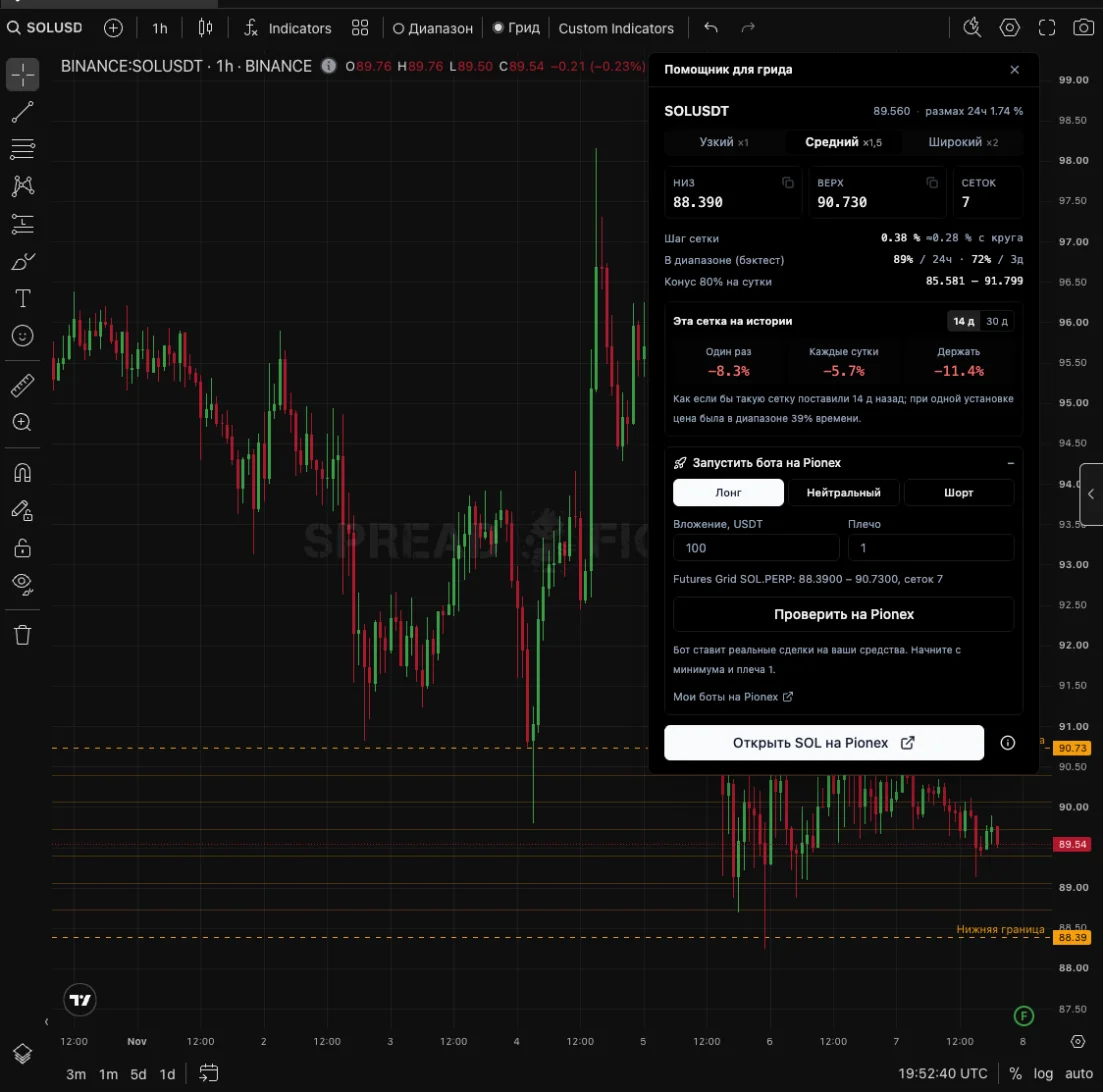
Grid helper on the SOLUSDT chart: boundaries and number of grids based on the daily range, 14-day grid history and the "Launch bot on Pionex" block.
What you can do with Pionex
- Launch a futures grid with boundaries from the helper — with one button from the chart.
- See running grids on the chart: boundaries, levels, entry and estimated trades.
- Manage grids in the portfolio: position, entry, PNL, funding, stop.
- Open and close Signal Bot trades from SpreadFighter alerts — see SpreadFighter alerts → Pionex Signal Bot.
- Get 7 days of Max for signing up on Pionex with our link.
7 days of Max for signing up on Pionex
- Click the Pionex button in the platform header.
- Sign up on Pionex with the link from the window.
- Enter your Pionex UID — 8 digits in your Pionex profile (account icon → under the nickname) — and click "Get 7 days of Max".
The bonus is given once: one UID per SpreadFighter account. If Pionex has not confirmed the sign-up through our link, the bonus is not granted — check the UID or sign up with the link from the window.
After the UID is linked, the window shows statistics: your trading volume on Pionex on spot and futures for the period.
Pionex key
To launch bots from SpreadFighter you need a Pionex API key.
- In Pionex open API Management and create a key with Bot reading and Bot trading permissions. No withdrawal permission and no IP binding.
- In SpreadFighter open the Trading widget → "My accounts and keys" → "Add Account" and choose PIONEX (bots).
- Paste the API Key and API Secret and click "Save and verify". The platform checks the key right away and shows how many futures grids you have running.
The key is stored encrypted and is never returned to the browser: bots are placed by our server. To replace the key, paste the new key and secret in the same window; empty fields keep the old ones.
Pionex allows bots only after verification (KYC). If the key is accepted but the bot does not start, check KYC in your Pionex profile.
Launching a grid from the chart
- On the chart of a Binance coin (a pair like BTCUSDT) click the "Grid" button — the grid helper opens. It calculates boundaries from the daily range and picks the number of grids so that the step is at least 0.4%. Why: see Grid bot: how many grids to use.
- Choose the width: "Narrow", "Medium" or "Wide".
- Look at the "This grid on history" block: what would have happened to this grid over 14 or 30 days.
- Expand "Launch bot on Pionex", choose the direction (long, neutral or short), the investment in USDT and the leverage.
- Click "Check on Pionex". The platform shows the minimum investment, the liquidation prices below and above, and the fee at start.
- If everything looks fine, click "Launch". A Futures Grid is created on Pionex for the coin's perpetual futures, with the boundaries and number of grids from the helper.
The bot places real trades with your funds. Start with the minimum investment and 1x leverage.
Even without a Pionex key the helper is useful: the bottom, top and number of grids are copied with a click, and the "Open … on Pionex" button leads to the coin's page, where you can paste them into a manual Futures Grid setup.
Grid on the chart
A running grid is drawn on the chart of its coin:
- Boundaries — labels "Pionex grid · bottom" and "Pionex grid · top".
- Grid levels — green where a buy is placed, red where a sell is placed.
- Start — the point where the bot was launched.
- Average entry — a line with the price, side and position size.
- Estimated trades — arrows for buys and sells. Closed pairs are joined by a dotted line with a number; an unclosed trade is shown as a segment to the price where it will close ("awaiting sell", "awaiting buy").
While a grid is active, the candles on the chart are dimmer so the grid is easier to read.
Pionex does not provide bot trades through any API. So the trades on the chart are reconstructed by calculation from Binance candles and the grid's order prices. The calculation is checked against the number of closed pairs reported by Pionex, but individual trades may differ from the real ones.
Grids in the portfolio
In the Trading widget, running grids are collected in a separate group, Pionex — grids (N). A row shows:
- the coin and the bot's direction (long, short or neutral);
- the bot's current position and total investment;
- average entry and mark price;
- PNL and funding;
- in the tooltip — range, number of grids, leverage, investment, grid profit and liquidation price.
Clicking a row opens the coin's chart if it trades on Binance. The stop button cancels the bot's orders, and its position is closed at market in USDT. You can also stop the bot in the Pionex app.
Common errors
| Message | What to do |
|---|---|
| Pionex allows bots only after identity verification (KYC) — complete it in your Pionex profile | Complete verification in your Pionex profile |
| The key lacks Bot reading / Bot trading permissions | Create a key with both permissions |
| The key is bound to an IP — create a key without IP binding | Create a key without IP binding |
| Pionex rejected the key — check the key and secret | Check the key and secret, paste them again |
| Not enough free USDT on your Pionex account for this investment | Top up your Pionex account or reduce the investment |
| Investment is below the minimum for this grid | Increase the investment or reduce the number of grids |
| This perpetual is not listed on Pionex | The coin is not traded on Pionex — choose another |